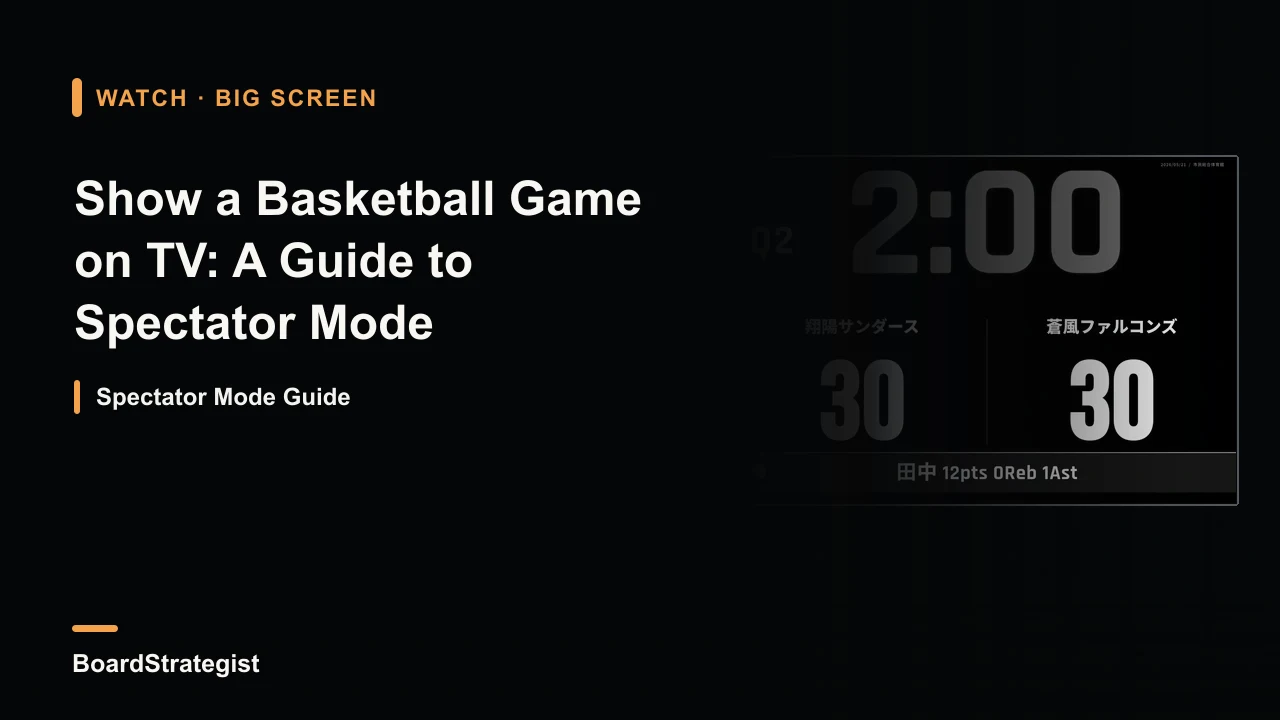
“What is the score?” and “How much time is left?” are familiar questions from the bench and parent seats. A handwritten flip scoreboard takes someone’s attention to update, and it can be hard to read from across a gym. If your team already records the game on an iPad, you can mirror its screen to a TV or monitor and let the whole venue follow along.
This guide is written by the developer of BoardStrategist, an iPad basketball tactics board and scorebook app. The connection steps also apply to other scorekeeping apps. The product-specific spectator-mode examples below describe BoardStrategist.
Connect the iPad to a gym display
You need the iPad used to record the game, a TV or monitor, and either an AirPlay receiver or an HDMI connection. As you record on the iPad, the displayed score follows the scorebook.
Option 1: Use AirPlay
If the venue has an Apple TV or an AirPlay-compatible display, you can connect wirelessly:
- Connect the iPad and display (or Apple TV) to the same Wi-Fi network.
- Swipe down from the top-right corner of the iPad to open Control Center.
- Tap Screen Mirroring, then choose the TV or Apple TV.
- Once the iPad screen appears on the TV, open spectator mode in the app.
AirPlay avoids running a cable across the gym. In a crowded venue, a busy or unreliable Wi-Fi network may cause delay or interruptions, so test it before the game.
Option 2: Connect by HDMI
A wired connection is useful when Wi-Fi is unavailable or you want a dependable display. Use the compatible USB-C Digital AV adapter, or Lightning Digital AV adapter for an older Lightning iPad, plus an HDMI cable:
- Plug the adapter into the iPad’s charging port.
- Connect the adapter to the TV with an HDMI cable.
- Use the TV remote to select that HDMI input.
- For a long game, connect a charger to the adapter’s power port if it has one.
HDMI does not depend on the venue’s Wi-Fi. Check the iPad’s connector type and the display’s available inputs before bringing equipment.
Five views for different moments
BoardStrategist’s spectator mode offers five views. Keep the scoreboard visible during play, then switch views during a timeout or halftime when the game is stopped.
- Scoreboard: Shows both teams’ score, period, and fouls in a large format.
- Team summary: Groups team statistics, useful for a halftime review.
- Player summary: Shows each player’s recorded performance.
- Game analysis: Provides a view of the game’s recorded progress for discussion.
- Shot chart: Plots shot locations to make shooting patterns easier to see.
Choose what the audience needs to know at that moment. For example, a shot chart can prompt a useful conversation at halftime, while the scoreboard is the clearest choice during live action.
Use captions to keep the crowd informed
The spectator view also supports scrolling text. BoardStrategist can show the leading scorer, recent highlights, or a custom message such as a team cheer, tournament name, or “Second half starts soon.” Use messages that are appropriate for the event and avoid sharing private player information publicly.
How BoardStrategist spectator mode works
Spectator mode is an extension of the BoardStrategist scorebook. The scorekeeper continues to enter the game on the iPad; the external display mirrors the current scorebook information. The same iPad can be used for recording and output. Connect it to an external display and use the app’s full-screen spectator view; the game score and other views update from the recorded game.
BoardStrategist is designed for iPad and also runs on iPhone. Its spectator mode is included with the app according to the product information in this article; current availability and price should be checked on the App Store before purchase. After the game, the scorekeeper can also share a result image with the team.
Before tip-off
- Confirm the TV input, adapter, cable, and power supply.
- For AirPlay, test the venue’s Wi-Fi and mirroring before the crowd arrives.
- Open the correct game and verify team names and score on both screens.
- Choose a view suited to live play; switch only when the game is stopped.
- Keep custom messages suitable for a public display.
Frequently asked questions
Will the display lag?
AirPlay can be affected by Wi-Fi conditions. If a stable wired display matters, test an HDMI adapter before game day. The actual delay depends on the iPad, display, connection, and venue conditions.
Do I need a second iPad for the scorekeeper?
No. The iPad used to record the game can also connect to the TV or monitor. The scorebook information appears on the external display.
Can I use HDMI without AirPlay?
Yes. A compatible USB-C or Lightning Digital AV adapter and an HDMI cable connect the iPad directly to the display.
Is spectator mode a separate purchase?
The Japanese source article describes it as included in the BoardStrategist scorebook. Check the current App Store listing for current product and pricing details.
Related reading
Quick tally scorekeeping · Basketball scoring basics · Basketball tactics-board options
Sources
Connection instructions are based on iPadOS screen mirroring and compatible display connections. Verify current device compatibility with Apple’s Screen Mirroring instructions Apple’s Digital AV adapter guidance, and the display manufacturer before the event.