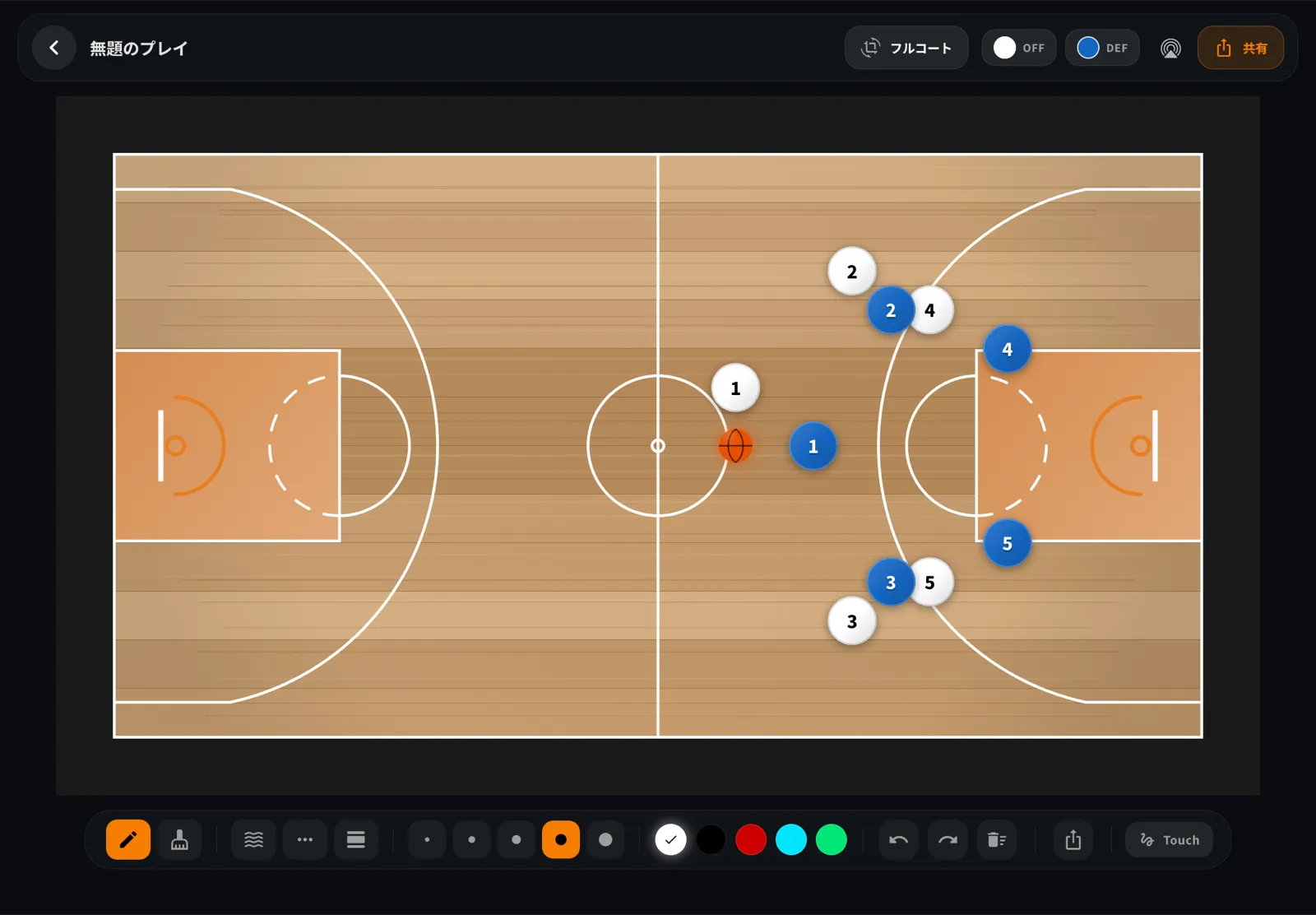
A still diagram shows where players finish. It is less clear about who moves first, when a screen happens, or which cut follows a pass. If you have already created a play animation on a tactical board, you can export it as a video and send it to players through LINE or another messaging app.
I develop BoardStrategist, a basketball tactics-board and scorebook app. This guide covers the export and sharing workflow described in the published Japanese article. The examples are general coaching scenarios, not personal game stories. For the earlier steps of creating a keyframe animation, see our guide to animating a basketball play on a tactical board.
Why send a play as a video?
A photo or still diagram is useful when the final positions are all players need to see. Timing is harder to explain in one image: who starts the action, when the screener turns, and where the next player moves after the pass. A short animation lets players replay the sequence on their own devices before practice or a game.
That can help when a player missed practice, when the team wants to review a set before a weekend game, or when coaches need to discuss a movement without gathering everyone in one place. Use video for the order and timing of a play; use a still image when the arrangement alone is enough.
Export and send the animation
In BoardStrategist, video export starts from an animation’s playback screen. The control labels can vary with the app’s language, so follow the share control on that screen: See tactics-board animation and sharing features for current feature details and availability.
- From the play-management list, open the animation you want to send and switch to its playback screen.
- Tap the share control at the top of the screen to start video export.
- Wait while the app builds the animation frames and converts them into a video. Longer animations with more keyframes take longer to export.
- When the device share sheet appears, choose LINE or another installed app. Which services appear depends on the apps and settings on that device.
The export follows the variant currently shown in playback. If a play has a second option, switch to that variant and export it separately so players receive the version you intend.
What the exported video contains
The published Japanese guide describes the export as an MP4, 1920 pixels wide at 30 frames per second. It shows the court, player and ball tokens, and drawn lines; it does not include audio. Export resolution and duration are not adjustable, and changing playback speed on the animation screen does not change the exported timing.
Duration is based on the keyframes. Each keyframe is shown for about one second, followed by about 0.6 seconds of movement toward the next keyframe. For example, three keyframes produce roughly a 4.2-second video; five produce roughly 7.4 seconds. These are estimates based on the described timing, not a separate duration setting.
The court format affects the video shape. A full-court play exports in a wide format, while a half-court play is close to square. For a full-court video, viewing it with the phone turned sideways can make the player movements easier to see.
Make the clip easy to review
Keep one play in each video and use only the key moments needed to explain it. Several short clips are easier to revisit than one long video because players can quickly find the play they need.
For example, before a weekend game, a coach might send the new set after the team has walked through it at practice, then ask players to review it again before game day. A player who missed the session can watch the same sequence before returning. Because the export has no audio, add a short note with:
- the play name or call;
- the player or movement to focus on; and
- when the team should review it.
Agree on the meaning of arrows, numbers, and calls so players read the animation consistently. See how to choose play calls and signals and how to make basketball diagrams easier for a team to read.
Show it on a larger screen with AirPlay
When everyone is together, a shared display can make it easier to discuss the movement as a group. The animation playback screen has an AirPlay control that opens the standard iOS device picker. Apple’s instructions explain how to stream video from an iPhone or iPad to an Apple TV, compatible smart TV, or Mac; for a manual connection, Apple says the devices should be on the same Wi-Fi network. See Apple’s AirPlay instructions. For showing a live game on a TV, see our guide to using spectator mode.
When a still image or another tool is better
If you only need to show player positions, exporting a still image is simpler than making a video. If you need to edit footage from a real practice or game, use a video-editing tool; a tactical-board animation illustrates the sequence of a play and is not a recording of live action.
Frequently asked questions
Can I send an animated basketball play through LINE?
Yes. Export the animation as an MP4 from its playback screen. When the share sheet opens, choose LINE if it is available on your device.
Can I change the video quality or length?
No. The export is 1920 pixels wide at 30 frames per second. Its duration depends on the number of keyframes and the fixed display and transition timing.
Does the exported video include sound?
No. The exported play animation contains video only. Add the play name and the point you want players to notice in your message.
Can I show the animation on a TV with AirPlay?
The playback screen has an AirPlay control for connecting to a compatible display. Apple’s AirPlay instructions generally require the iPad and receiver to use the same Wi-Fi network.